
Pro Tips
LegalGraph COI MCP Connector — Quick Start Guide

LegalGraph COI MCP Connector — Quick Start Guide
This guide walks you through connecting LegalGraph COI MCP Connector to Claude and asking your first question. The whole process takes about five minutes.
Before You Start, You Need
A Claude account — Free, Pro, Max, Team, or Enterprise all work.
An active LegalGraph account with access to the COI module.
Team or Enterprise workspace: ask your workspace Owner to add the connector first (Organization settings > Connectors). Once they have, you connect your own LegalGraph login individually — see the Important Notes section below.
Step-by-Step Setup
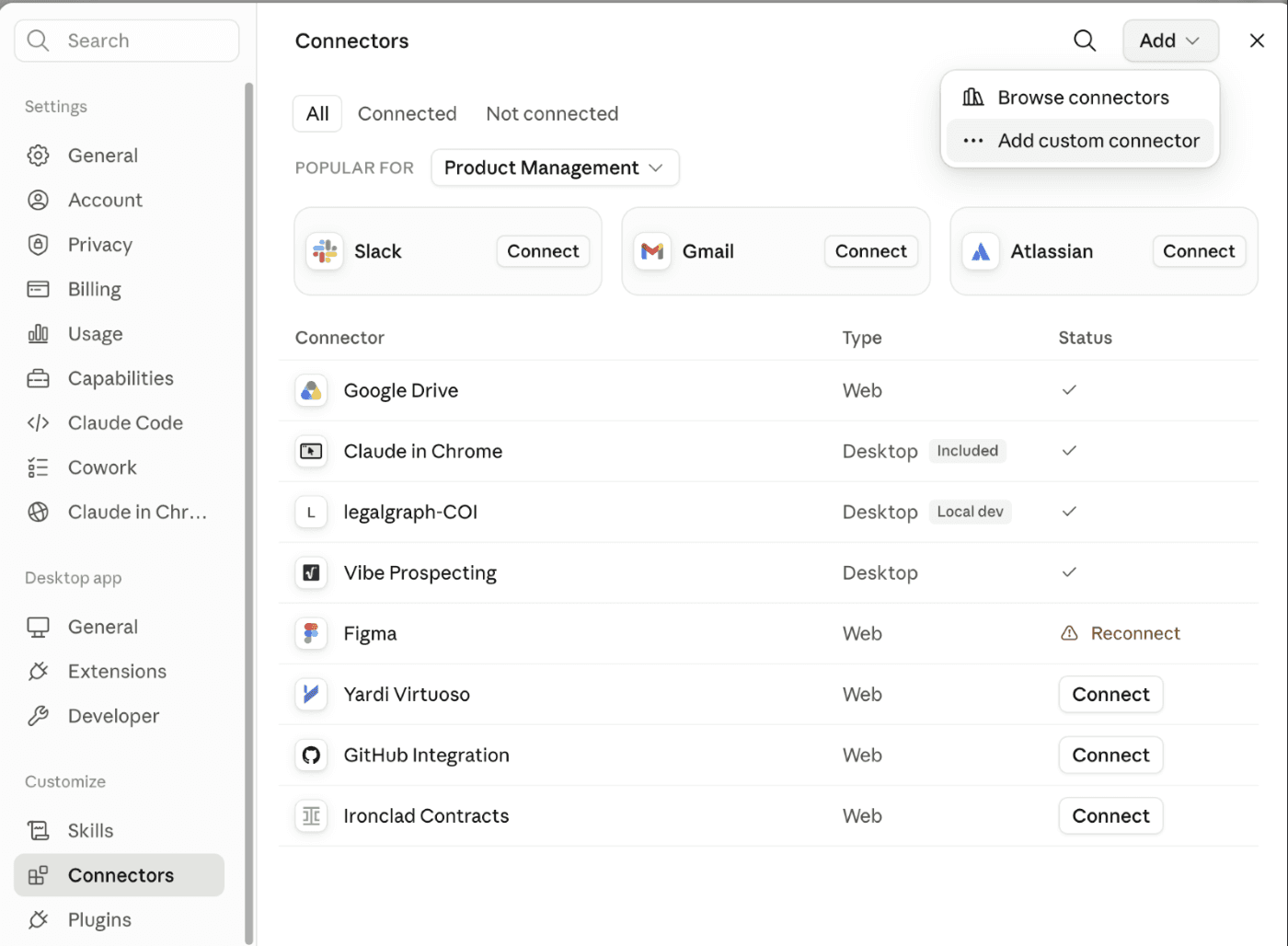
Step 1. Open Connectors in Claude App and add a custom connector
In Claude, go to Settings > Connectors. Click “Add,” then choose “Add custom connector” from the dropdown.
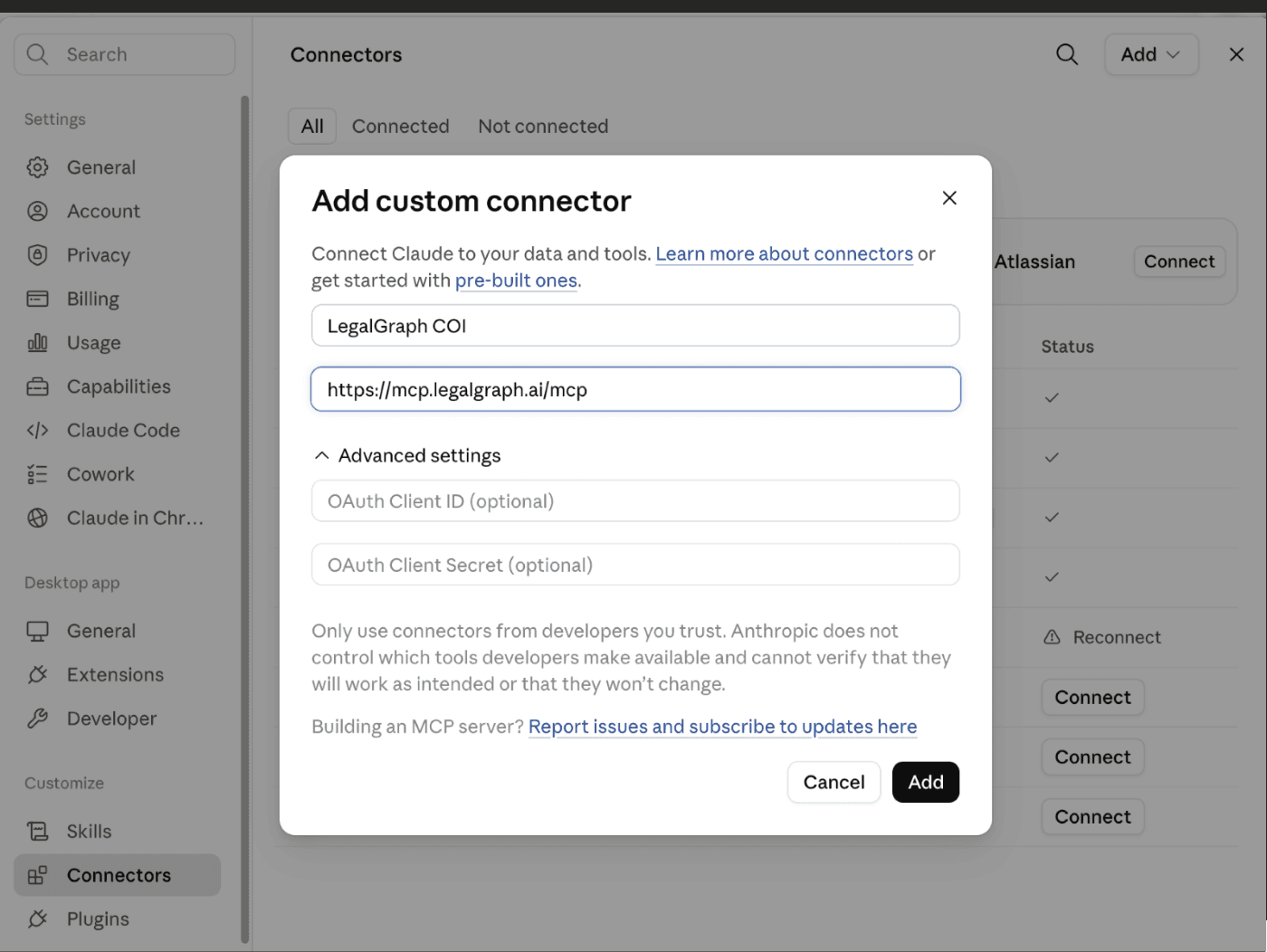
Step 2. Enter the connector name and URL
Name it “LegalGraph COI” and paste in the server URL: https://mcp.legalgraph.ai/mcp. Leave the OAuth Client ID and Secret fields blank — those are optional. Click “Add.”
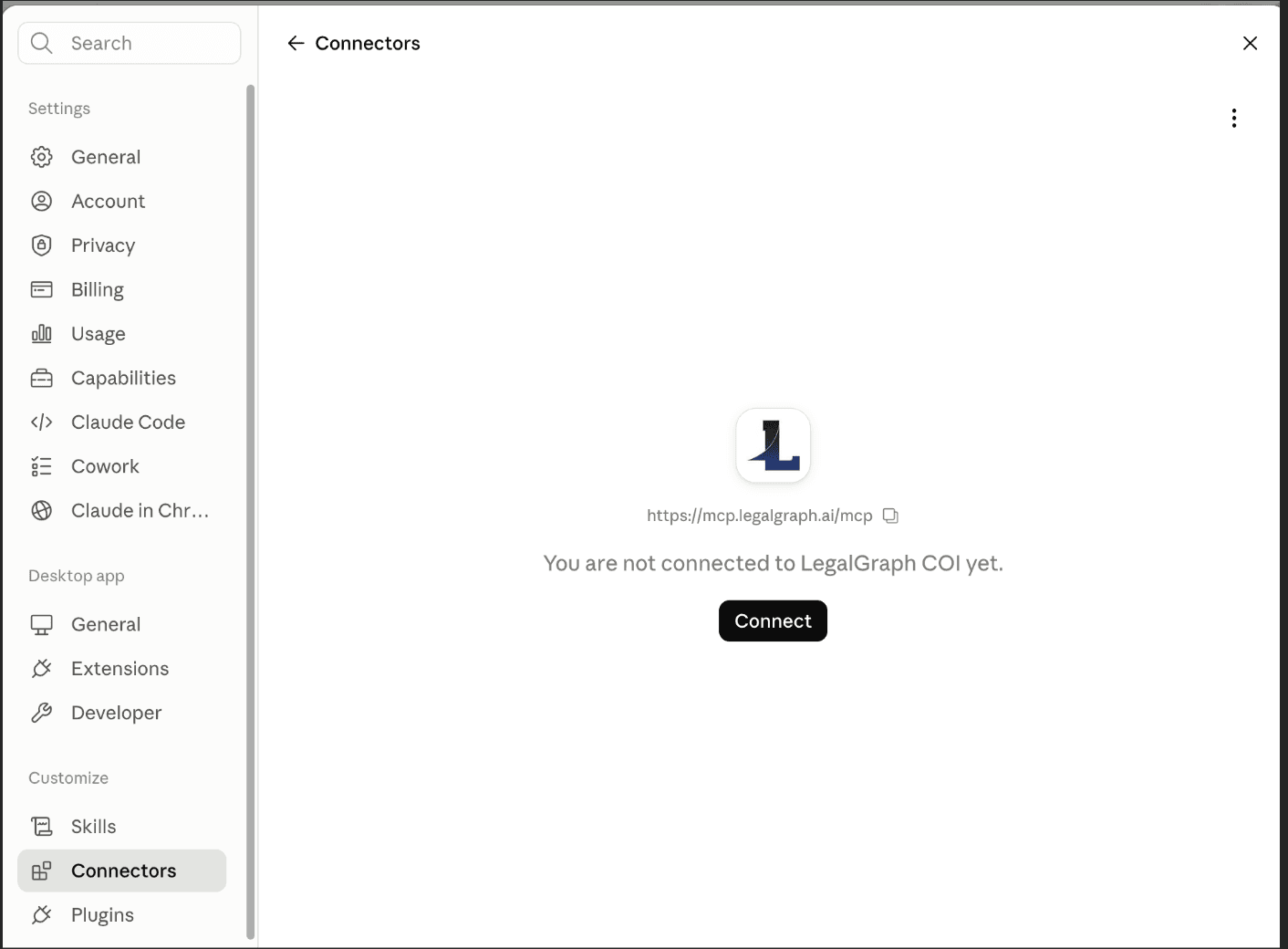
Step 3. Click Connect
The connector is added but not yet connected to your LegalGraph account. Click “Connect” to start signing in.
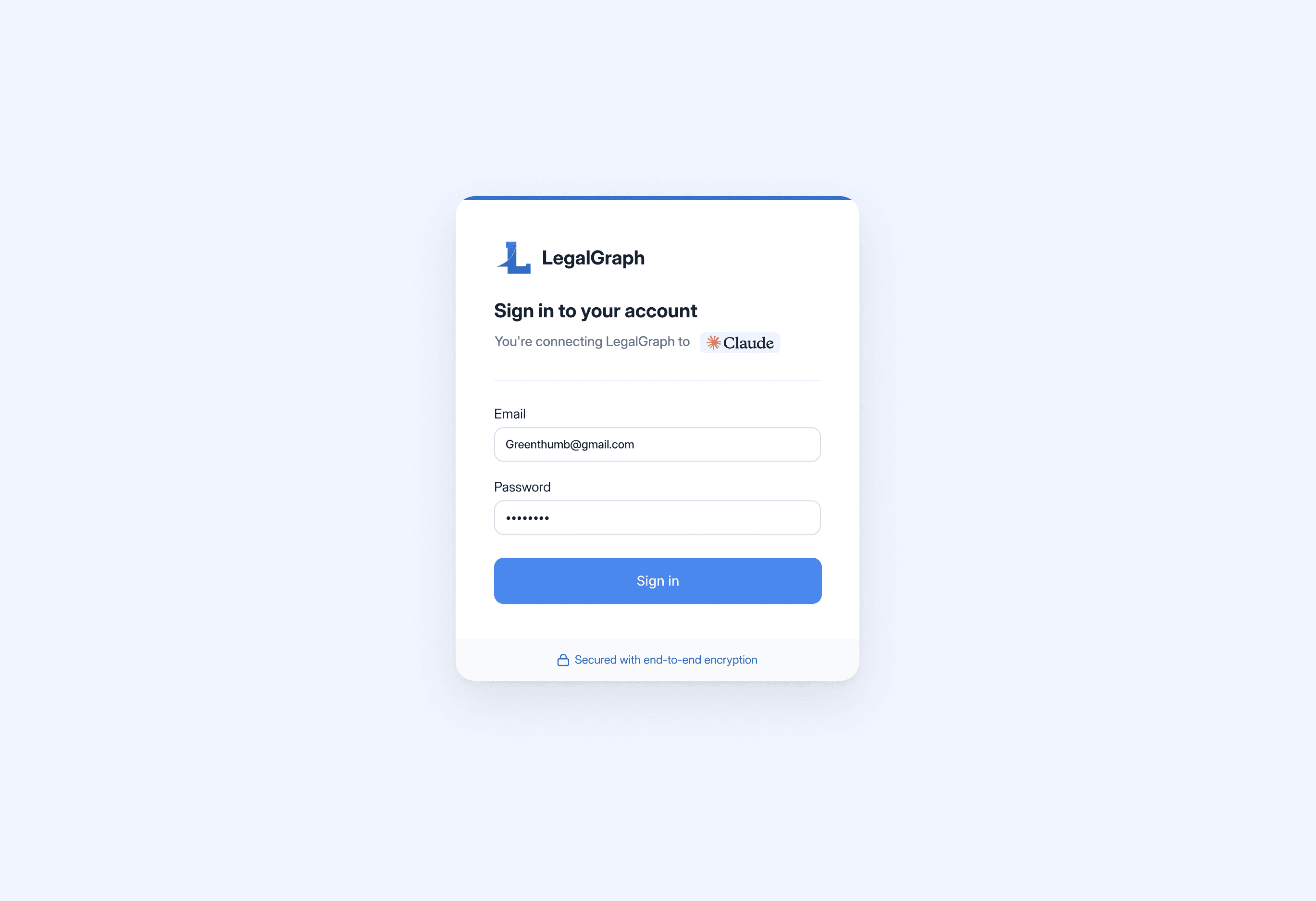
Step 4. Sign in with your LegalGraph credentials
A LegalGraph sign-in page opens — this is LegalGraph’s own login screen, not Claude’s. Enter the same email and password you use to access the LegalGraph COI dashboard, then click “Sign in.”
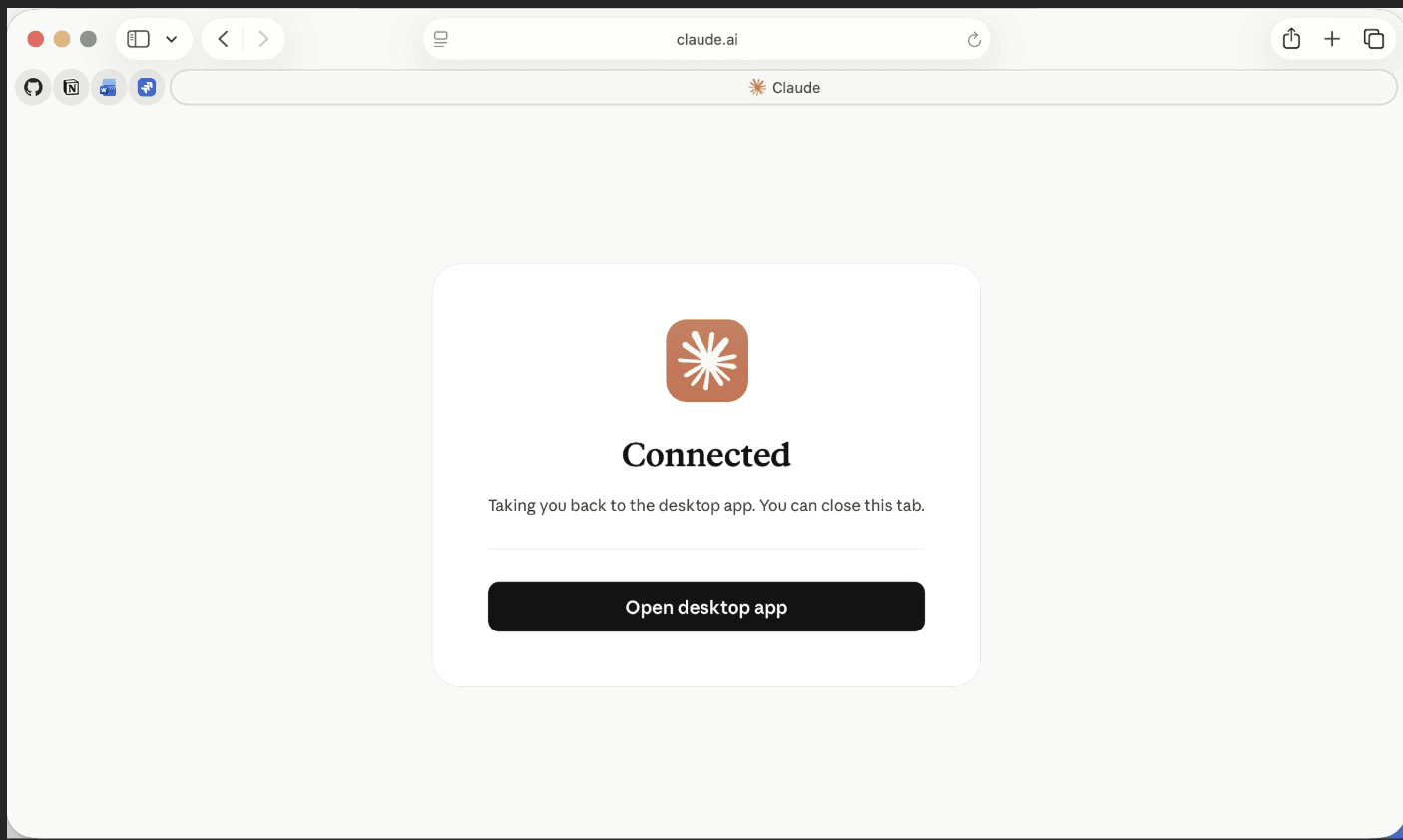
Step 5. You’re connected
After signing in, you’ll see a confirmation screen and be returned to Claude automatically. Claude never sees your LegalGraph password — only a secure, limited-access token.
Step 6. Review the connector and its tools
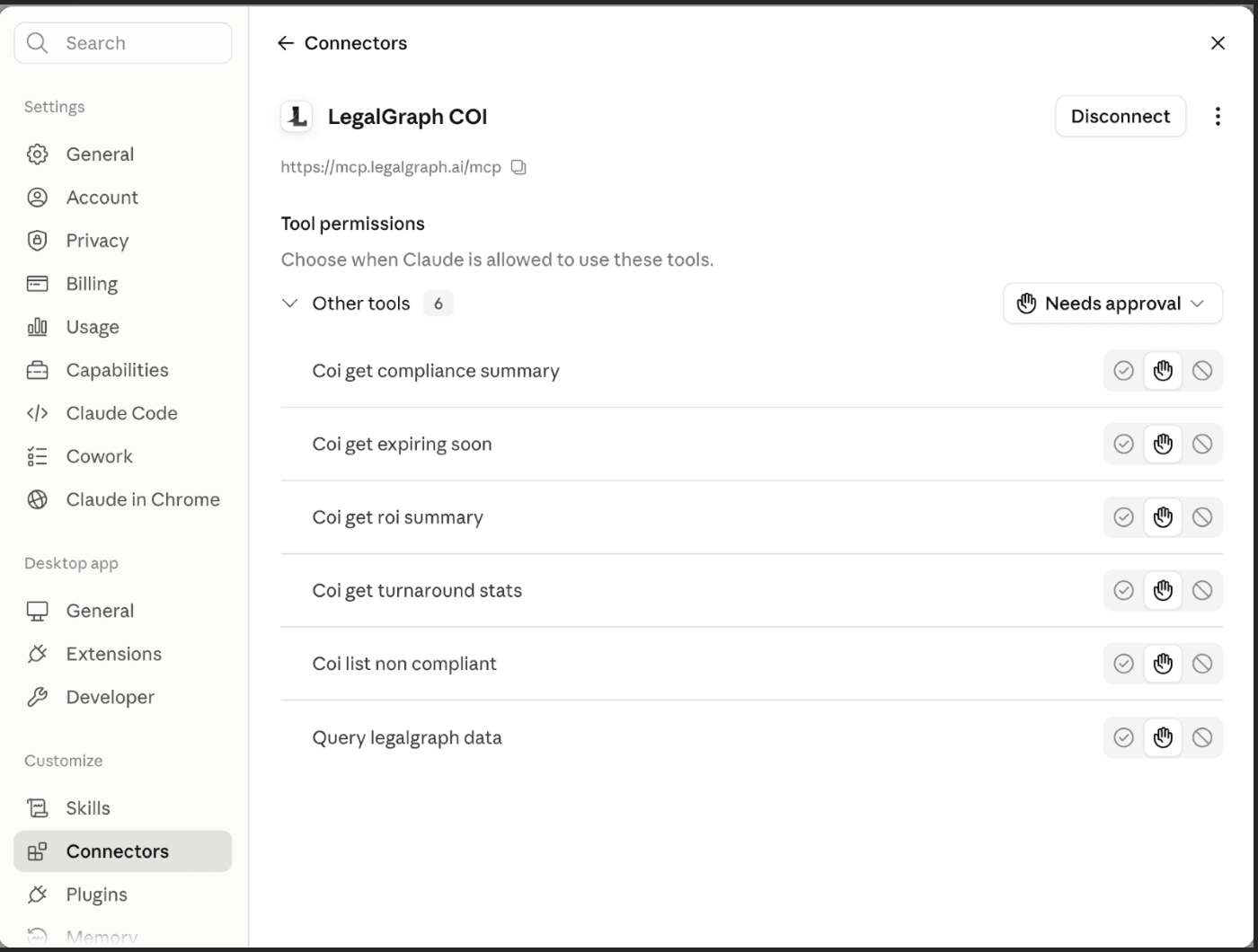
Back in Claude, the LegalGraph COI connector now shows “Disconnect” instead of “Connect,” confirming it’s active. Below it, you can see the tools it can use — compliance summaries, expiring COIs, ROI summaries, turnaround stats, non-compliant lists, and general data queries — each set to “Needs approval” by default.
Step 7. Turn the connector on for your conversation
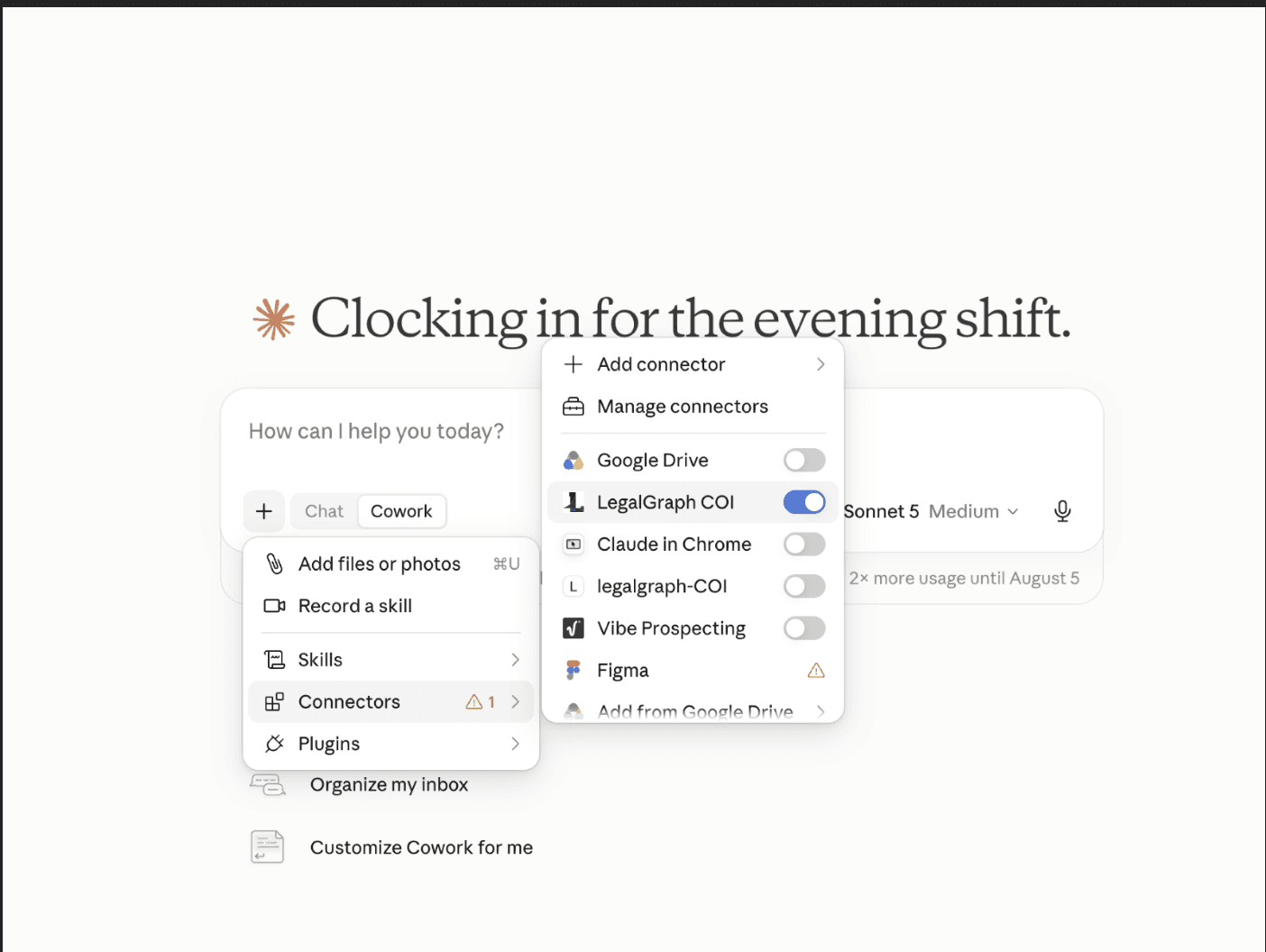
In a chat, click the “+” button (or type “/“), go to Connectors, and toggle LegalGraph COI on. It stays on for future conversations automatically once enabled.
Step 8. Ask your first question
Type a question in plain English — for example, “How many COIs are expiring in the next two weeks?” The first time Claude uses a LegalGraph COI tool in a conversation, it will ask you to approve the request. Choose “Allow for this task” to avoid being asked again for the rest of that conversation, or “Allow once” to approve just this one call.
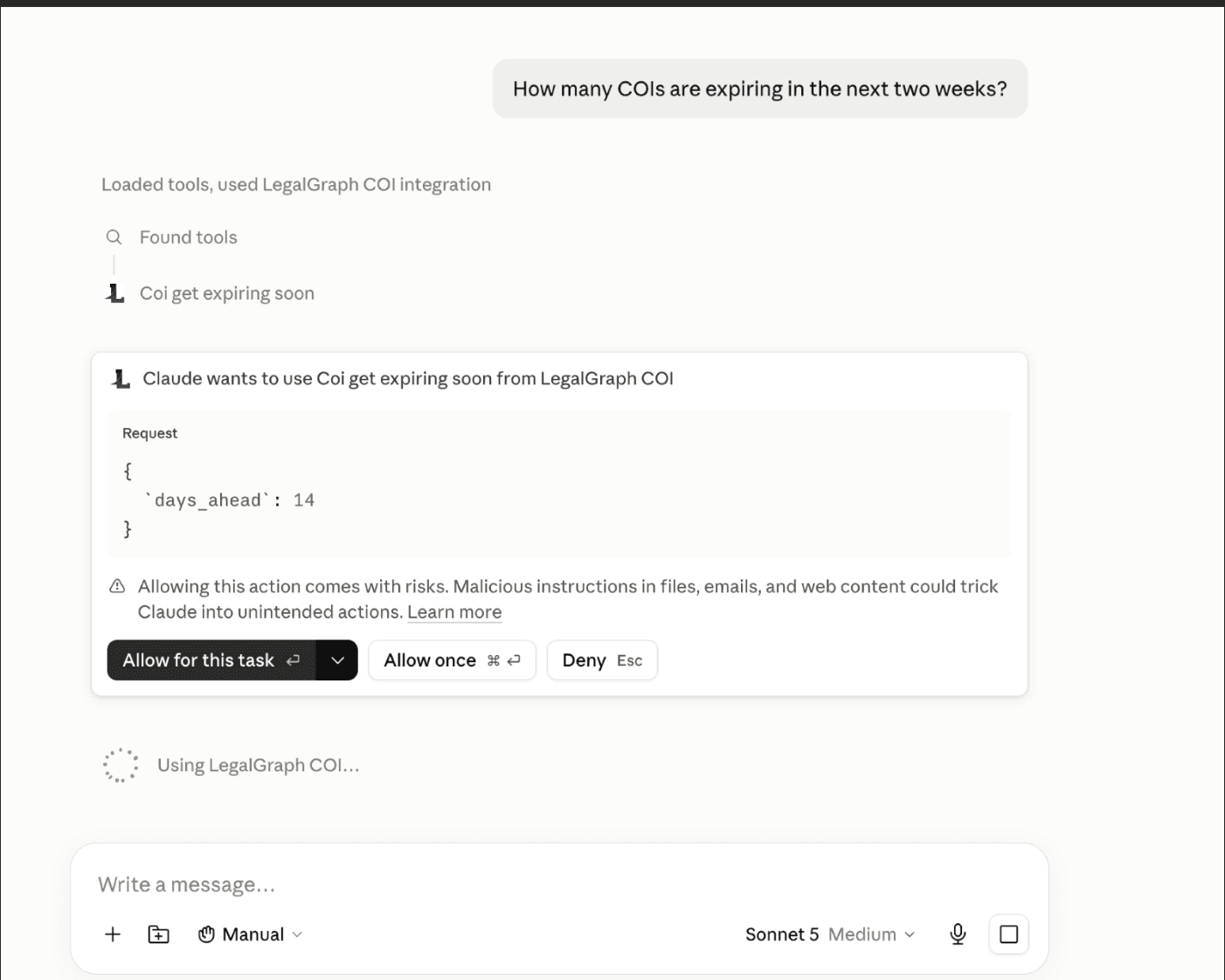
That’s it — Claude will use the connector to pull the answer directly from your LegalGraph COI data and reply in the conversation.
Example: Asking Follow-Up Questions
You can keep asking questions in the same conversation and Claude will keep querying LegalGraph COI for you — no need to reconnect or re-approve every time. For example, after asking “how many COIs are rejected and expired?” you can immediately follow up with “how many are expiring in next 30 days, what are those tenants?” and Claude will run a new query and answer directly, citing which LegalGraph data it pulled from.
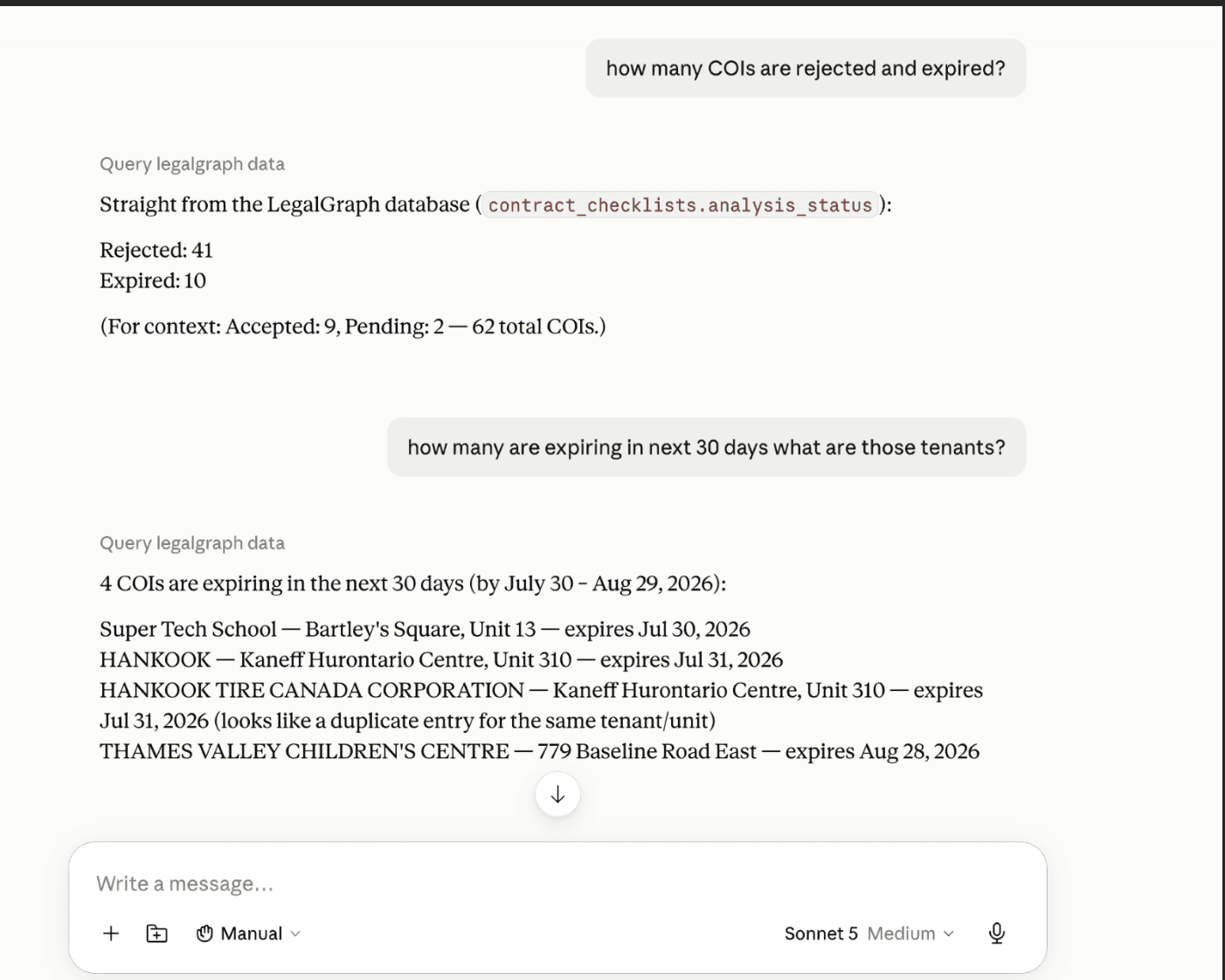
Notice that each answer names the underlying LegalGraph field it came from (for example, contract_checklists.analysis_status) — this makes it easy to verify the answer against the LegalGraph dashboard if needed. Claude may also flag things it notices along the way, like the likely duplicate tenant entry in this example.
Important Things to Know
A LegalGraph account is required. The connector is an extension of your existing LegalGraph subscription — it does not work on its own, and it does not create a new account or new data.
Your answers are scoped to your LegalGraph access level. Claude can only see what you can already see when you log into LegalGraph directly. For example, if your LegalGraph login only has access to the Commercial Tenant dashboard, Claude will only be able to answer questions about Commercial Tenant COIs — it cannot answer questions about Residential or Commercial Contractor data you don’t have permission for.
Tool approval is normal, not an error. The first time Claude uses a new LegalGraph COI tool in a conversation, it will ask for your permission. This is standard Claude behavior for any connector, not something specific to LegalGraph.
This is the Version 1 custom connector, so you need the server URL to add it, as shown in Step 2. A future Version 2 release will list LegalGraph COI directly in Claude’s Connectors Directory, so you’ll be able to find and add it by name without needing a URL.
Free-plan Claude accounts are limited to one custom connector in total. If you already use a different custom connector, you’ll need to remove it before adding LegalGraph COI.
Troubleshooting
Still says “not connected” after adding it — go back into the connector and click “Connect,” then complete the LegalGraph sign-in screen (Step 3–4).
Connector doesn’t seem to be used in your conversation — check it’s toggled on: click “+” > Connectors, and confirm LegalGraph COI is switched on.
Being asked to approve the same tool every message — choose “Allow for this task” instead of “Allow once” so it doesn’t ask again for the rest of that conversation.
Can’t add a second custom connector on a Free plan — remove your existing custom connector first, or move to a Pro/Max/Team/Enterprise plan.
Need Help?
If you run into an issue not covered here, write to rajat@legalgraph.ai.


